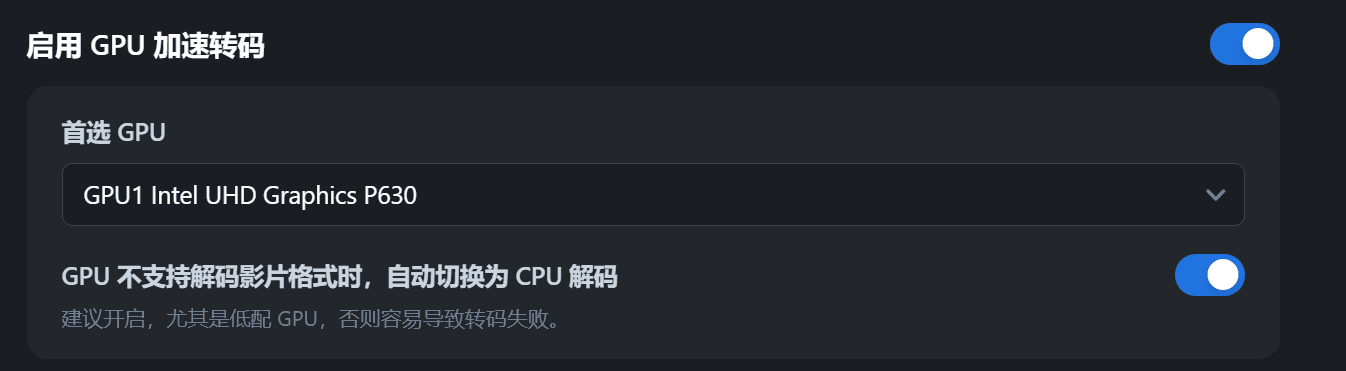
Introduction
This tutorial is for physical Synology devices with integrated GPUs (iGPU), and it guides you through installing a virtual machine using the Synology VMM package, passing through the host's iGPU to achieve hardware decoding in the virtual machine. Note that this method differs from the common PVE host + iGPU passthrough virtualization method found online.
Environment Information
Intel Xeon W-1290P ES (QTB3) processor
UHD P630 iGPU (PCI device ID: 0x8086:0x9BC6)
ASUS W480 Pro ACE motherboard
RR 25.1.0 boot loader, simulating machine model SA6400, with the latest 7.7.2 system and official kernel
Feinuo OS v0.8.29
Operation Steps
First, use RR to compile and install SA6400, then complete the VMM package installation after entering the system.
In VMM, import the Feinuo OS image ISO and install the virtual machine. Choose the PC (i440fx) platform and Legacy firmware.
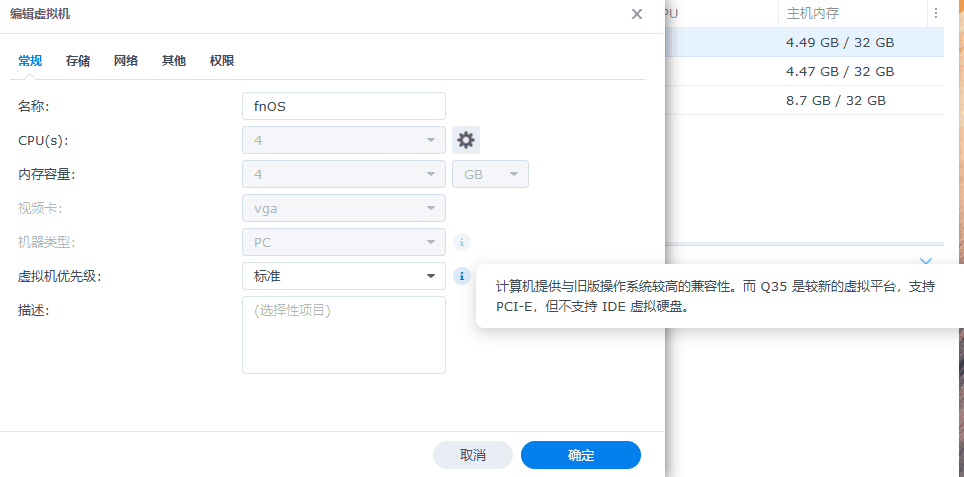
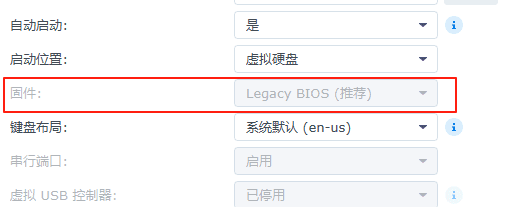 After a normal graphical installation, restart the virtual machine and confirm that it boots into Feinuo OS: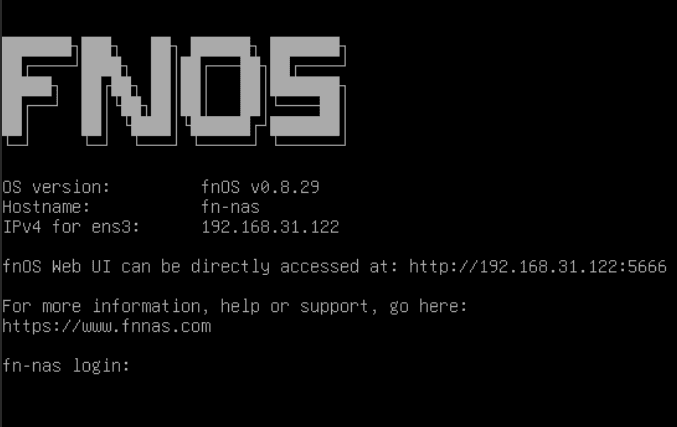
After completing the above environment preparation, start the iGPU passthrough steps. First, restart the physical machine and confirm the following settings in the BIOS:
Enable VT-d and VMX (for virtualization)
Enable IOMMU support
Enable Above 4G Decoding and Resize BAR Support
Disable CSM and use pure UEFI boot
Disable secure boot
Add custom cmdline to RR boot loader:
intel_iommu=oniommu=ptvfio-pci.ids=8086:9BC6(corresponding to the vendor ID and device ID of the iGPU's PCI device)
In RR boot loader, confirm that the vfio-related drivers are selected in the modules
Re-compile the RR boot loader, start the physical Synology system, and use the following commands to confirm that iommu is enabled:
dmesg | grep -i iommudmesg | grep DMAR
Use the following script to confirm the iommu group situation
for iommu_group in $(find /sys/kernel/iommu_groups/ -maxdepth 1 -mindepth 1 -type d); do

    echo "IOMMU Group $(basename "$iommu_group")";

    for device in $(ls "$iommu_group"/devices/); do

        echo -e "\t$(lspci -nns "$device")";

    done;

done;
The following is the IOMMU group situation of my environment, which can be seen that the integrated graphics card is a separate group. When passing through, it is required that the entire group must be passed through together. Therefore, if your environment has other devices in the group where the integrated graphics card is located, please refer to other tutorials for modification, such as setting pcie_acs_override=downstream or pcie_acs_override=downstream,multifunction in grub:

Load vfio driver
modprobe vfio-pciUnbind the i915 driver for the integrated graphics card
echo 0000:00:02.0 > /sys/bus/pci/drivers/i915/unbindRegister VFIO device ID
echo 8086 9bc6 > /sys/bus/pci/drivers/vfio-pci/new_idBind vfio driver
echo 0000:00:02.0 > /sys/bus/pci/drivers/vfio-pci/bindAt this point, it can be seen that the integrated graphics has loaded the vfio driver
ash-4.4# lspci -s 00:02.0 -vvv | grep driver
        Kernel driver in use: vfio-pci
Create a new xml file, write the following content, and save it as igpu.xml
<hostdev mode='subsystem' type='pci' managed='yes'>
    <driver name='vfio' />
     <source>
       <address type='pci' domain='0x0000' bus='0x00' slot='0x02' function='0x0'/>
     </source>
</hostdev>
View the virtual machines currently running on Synology
ash-4.4# virsh list
 Id   Name                                   State
------------------------------------------------------
 23   24ad9cfe-cc2a-4a74-a07e-40387e52c42e   running
 32   70a3a0cd-d7b3-4169-8c7f-e530f69f6908   running
 33   b861aa8a-0a05-4752-9462-6e7d64626cfd   running
Add integrated graphics to the Flying Cow virtual machine, and if successful, it will echo
Device attached successfullyvirsh attach-device b861aa8a-0a05-4752-9462-6e7d64626cfd igpu.xmlEnter the Flying Cow virtual machine system, check if the nuclear display device is recognized, and install intel-gpu-tools to monitor the usage situation
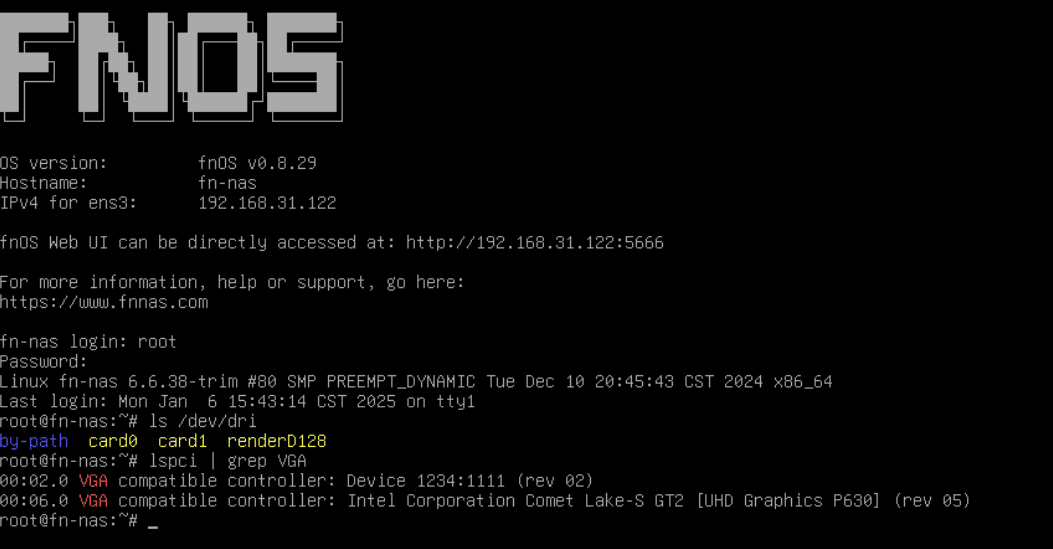
sudo apt update && sudo apt install intel-gpu-toolsUnder the Flycow system, the integrated graphics card is recognized normally, and video decoding can be called
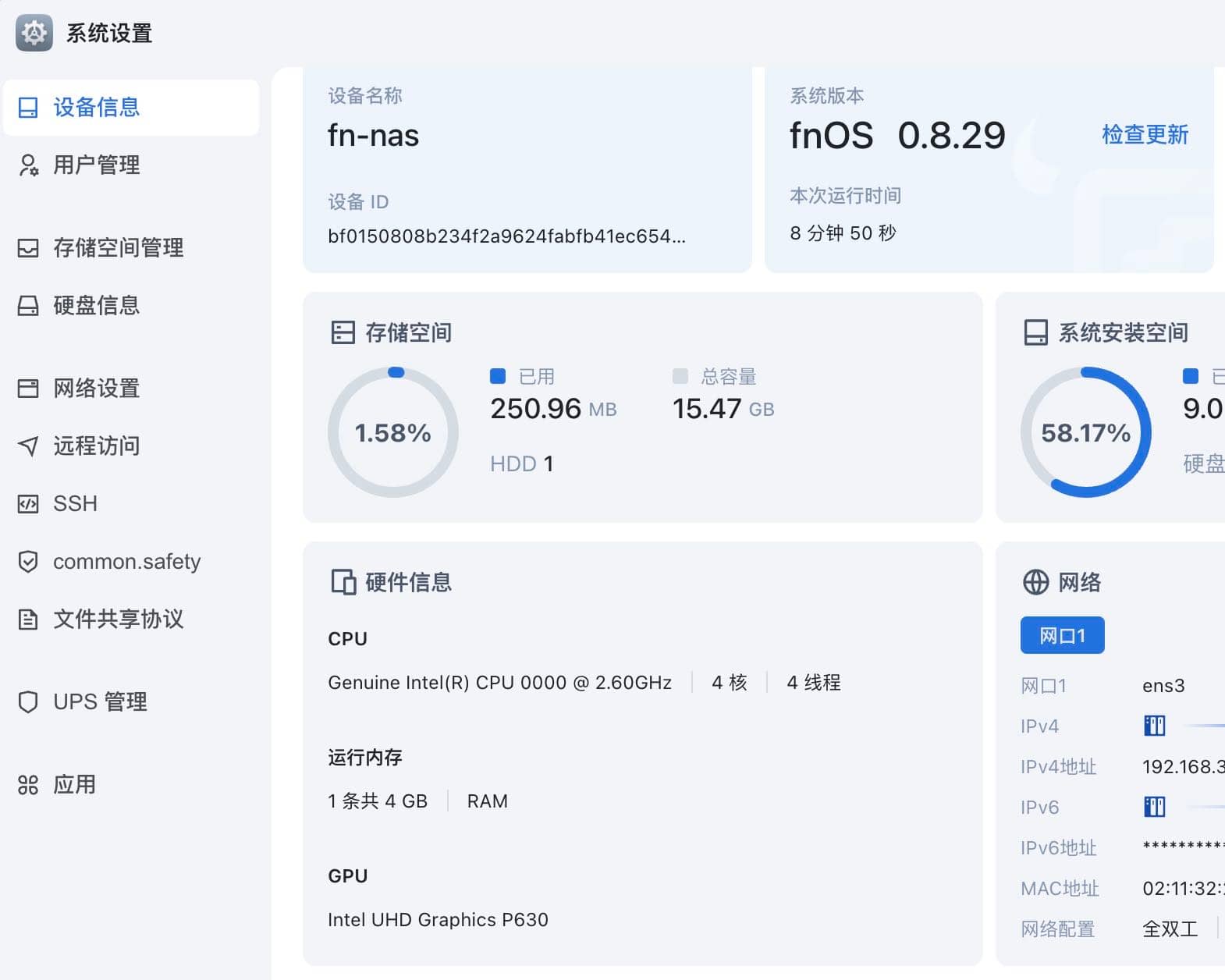
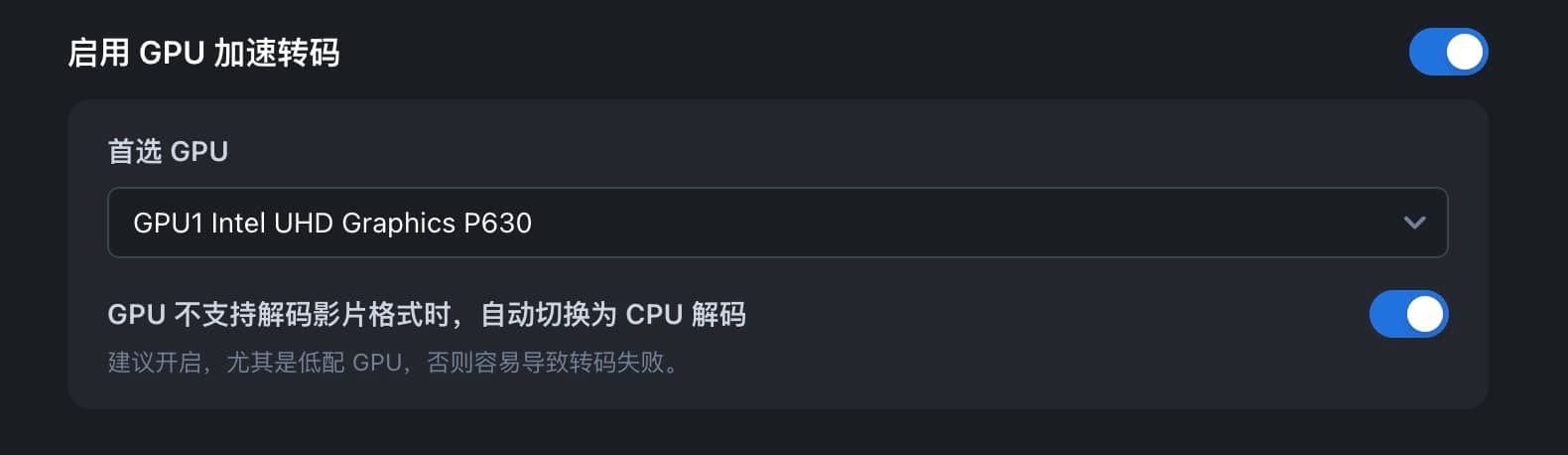
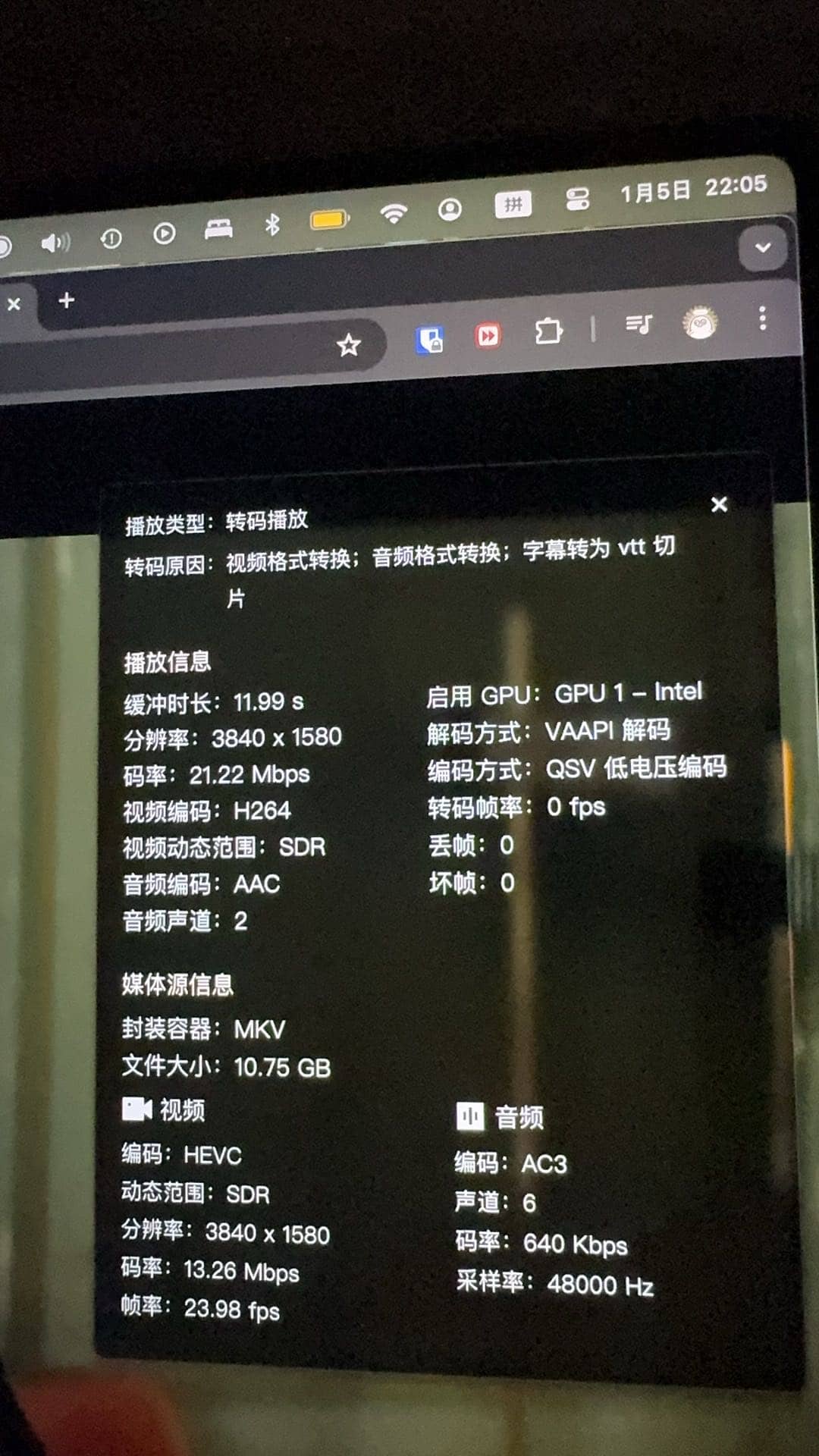
 When decoding, using the
 intel_gpu_topcommand can see the integrated graphics card usage rate increase, indicating that the hardware call is successful
Thanks
RR boot project
Xpenology forum
Jim's development on the SA6400 model
若无法加载请检查网络环境。
若无法加载请检查网络环境,或切回 Disqus 稍后再试。